These guides use FIFINE's published specifications and setup guidance.
FIFINE AM8 vs A6V
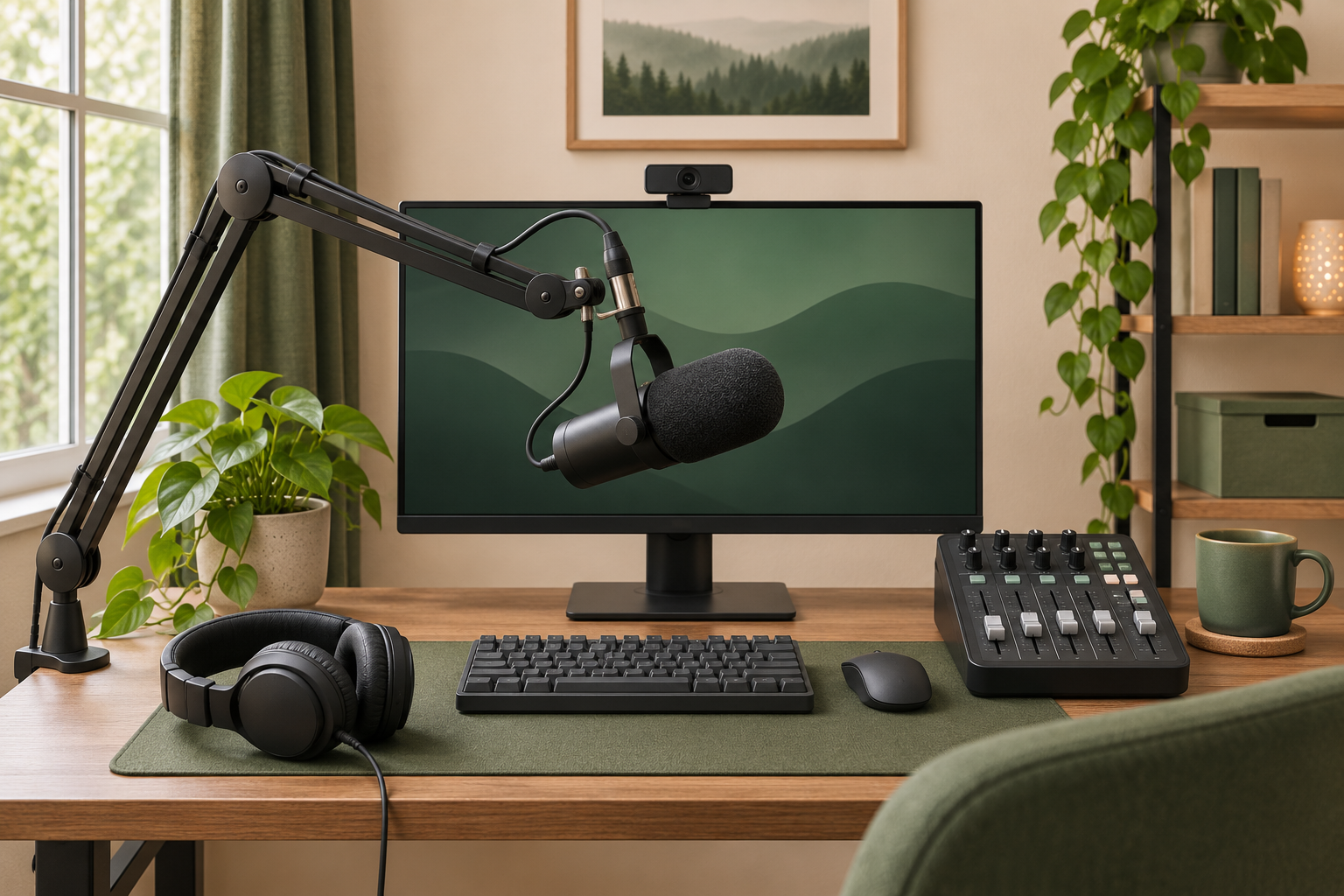
Setup illustration
Choose the A6V if your setup is one computer, one microphone and a free USB port. It is a USB condenser microphone, so the computer handles input selection and recording. Leave room to position it close enough to speak comfortably without reaching across the desk.
Choose the AM8 if you want to start over USB and might later connect to an XLR mixer or interface. It is a dynamic microphone with both connections. Its onboard mute and other controls depend on USB mode, so plan to use your mixer or software controls when you change to XLR.
For a desk near a keyboard, make a short test recording while typing at your usual distance. Adjust microphone placement and input gain before judging how much room noise either setup will capture.
USB is the simpler starting point for solo calls, gameplay commentary or a first podcast. Connect the microphone directly to your computer, select it as your input and make a short recording to check voice level and background noise.
XLR makes sense when you need an interface or mixer for physical controls, additional inputs or a specific monitoring setup. Budget for the cable and interface as well as the microphone. Check the interface's input count, gain controls and headphone routing against your workflow before buying.
If you start with the dual connection AM8, write down the one limitation you want an upgrade to solve. For example, a mixer may make live level changes easier. Recheck which microphone controls work after switching connections.
Is the FIFINE SC3 worth adding to your streaming setup?
Setup illustration
Consider the SC3 if you use an XLR microphone and want physical level control and headphone monitoring within reach. FIFINE lists faders, mute controls and switchable 48 V phantom power. Check your microphone's manual before enabling phantom power.
If you already have a USB A6V, connect it directly to your computer. If your goal is to run an AM8 through the SC3, use the AM8's XLR connection and budget for an XLR cable. Check your bundle for what is included.
Before going live, record a short sample with your mic and game audio at normal levels. Listen back and confirm that both are in the recording, the voice is clear and monitoring does not create an echo. If your current software controls already handle those tasks comfortably, keep your existing setup.